I was in the middle of another failed attempt to get a clean engraving on a wooden cutting board with my old diode laser—the one that cost me two evenings and a perfectly good piece of walnut—and I just sat there staring at the faint, uneven lines thinking, I’m an idiot for not upgrading sooner. Not that this is my first rodeo with cheap machines that promise the moon. I’ve got a drawer full of failed gadgets, each one a monument to my own gullibility. But the cutting board was a gift for my sister, and I was out of time, out of patience, and dangerously close to just burning her name in with a soldering iron and calling it “rustic.”
That’s when I found the Creality Falcon 10W. Actually, I found it by accident while rage-scrolling Amazon at 2 AM, coffee long gone cold, the dog snoring in a way that suggested even he was disappointed in me. There it was, hovering around $390 with a rotary roller bundle, air assist, and specs that sounded almost too good for the price. I’d been burned before, but the combination of 10W output, the ability to cut 12mm wood in one pass, and that rotary kit for tumblers—my girlfriend had been dropping hints about custom mugs for months—made me do it. Click. Ordered. Then I sat in the dark wondering if I’d just wasted $390.
Creality Falcon 10W Laser Engraver with Air Assist
The box arrived three days later. I’ve never unpacked something with more skepticism. My coffee was, predictably, the wrong temperature again—too hot, because I’d let it sit while wrestling with the tape. But here’s the thing about the assembly: it’s advertised as taking 10 to 20 minutes, and for once, a manufacturer didn’t lie. I’m not mechanically inclined. I once put an IKEA dresser together backwards and just lived with it. But the Falcon 10W came about 90% pre-assembled. The main gantry, the laser module, the rails—all in place. I had to attach the Z-axis risers, plug in the cables, and screw on the air assist pump. That’s it. The whole thing took me maybe 15 minutes, including the time I spent trying to find a screwdriver because the included Allen wrenches are fine but my hands are not.
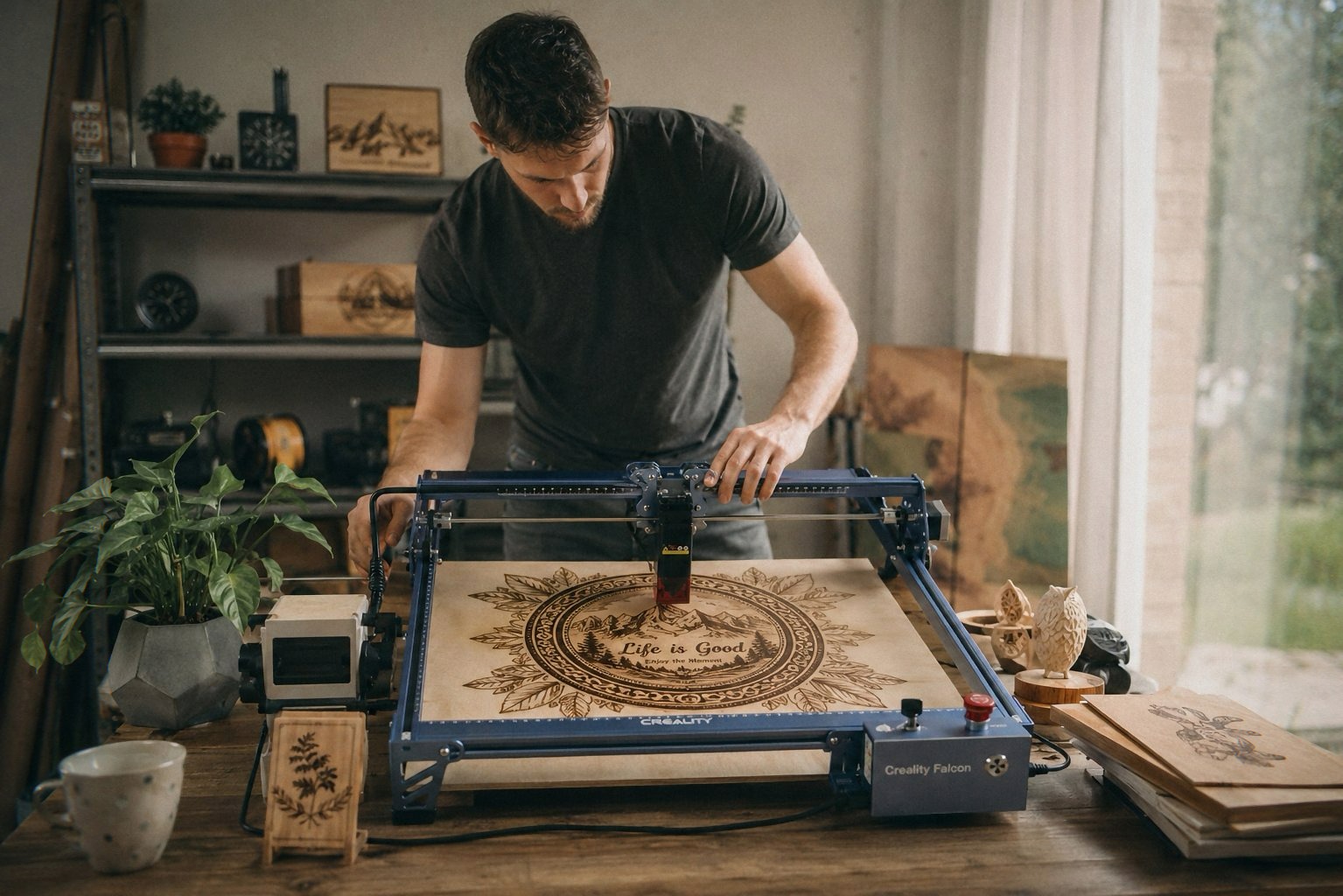
One thing nobody tells you about this machine: when you first turn it on, there’s a faint, almost pleasant electrical smell—like ozone mixed with warm plastic—that fades after a few minutes of use. It’s not alarming, just specific. I remember thinking, “Okay, this is what a laser that costs under $400 smells like.” And the button, the emergency stop button, has this satisfying, slightly stiff click to it that makes you feel like you’re arming something important. The kind of button that says, “I will stop if you need me to, but only if you really mean it.”
Cutting power that actually means something
I started with a scrap piece of 5mm birch plywood. Loaded up LightBurn, which I’d never used before, and spent a good hour just watching tutorials and feeling like I was back in high school computer lab. The Creality Falcon 10W is compatible with both LaserGRBL and LightBurn, and I ended up sticking with LightBurn because the UI feels less like a fever dream. Imported a simple geometric pattern, set the power to 80%, speed at 2000 mm/min, and hit go.
The first cut was clean. Not just “good for the price” clean—actually clean. Zero charring on the edges, minimal smoke, and it went through the 5mm ply like it was warm butter. I could see the little air assist nozzle doing its job, blowing away the dust and keeping the cut line crisp. The 0.6mm laser spot is real. It’s not some marketing exaggeration. The fine detail on that first piece—a small mandala pattern—looked like it had been done by a machine twice the price. I couldn’t stop running my fingers over the edges. Smooth, precise, no tear-out. The kind of result that makes you immediately want to engrave everything in sight.
If you grab one through the links here, I might get a small cut — costs you nothing extra and keeps the lights on. And considering how much I’ve spent on this hobby over the years, every little bit helps.
The spec sheet says it can cut a 12mm wood board or 3mm black acrylic in one pass at 10000mm/min. I didn’t have 12mm stock on hand, but I did have a piece of 10mm oak from a failed shelf project. I figured I’d push it. At 10000mm/min, it cut through the oak in two passes. The first pass went about 6mm deep, the second finished it. That’s with air assist running full blast. I’m not going to say it did it effortlessly—there was some hesitation, and the laser module got noticeably warm—but it did it. The smoke detector didn’t go off, which is my real-world benchmark for “safe enough.”
The rotary roller kit: actual thoughts
This is where things get interesting. The 4-in-1 rotary roller is one of the main selling points, and honestly, it’s the reason I bought this over the cheaper 5W models. It comes with three different setups: the standard external clamping jaws for objects up to 110mm in diameter, internal supports for things like glasses and vases from 25 to 75mm, and a third option for spheres and rings. I tried the external jaws on a stainless steel tumbler—one of those cheap ones from a craft store—and it worked. The engraving came out even, no slipping, no wobble. But here’s the thing: if you’re expecting to just pop the rotary roller on and start engraving without any calibration, you’re in for a rude awakening.
The software setup for the rotary roller is not intuitive. You have to manually adjust the steps per millimeter in LightBurn to match the circumference of your object. The included manual? It’s a thin booklet that assumes you already know what you’re doing. The connection cable for the rotary kit was hidden deep in the foam packaging, like a scavenger hunt I didn’t sign up for. I nearly returned the whole thing thinking they’d forgotten it. It’s buried, and I mean buried. If you buy this, check every inch of that foam before you panic.
That said, once you figure out the calibration, the rotary roller works surprisingly well. I engraved a small geometric design on a 16oz tumbler and gave it to my girlfriend as a test. She thought I’d bought it custom. That felt good. Not as good as the coffee I’d been neglecting during the setup, which by then was room temperature and tasted like betrayal, but good enough.
Air assist: not a gimmick
The included air assist kit is a small pump that sits next to the machine and blows air onto the cutting surface. It’s adjustable, and you really need to play with the flow depending on what you’re cutting. On wood, I ran it at about 60%—enough to clear debris but not so much that it blew the wood dust everywhere. On acrylic, I cranked it to max, and the cuts came out almost flame-polished on the edges. No frosting, no melted goo. Just clean, clear edges.
The pump itself is a bit noisy. It’s not loud enough to wake the neighbors, but if you’re in a small apartment, you’ll definitely notice it. It vibrates too. I ended up putting a piece of foam under it to dampen the sound. A small complaint, but worth mentioning if you plan on running this in a shared space.
The biggest difference air assist made was on thicker cuts. Without it, the laser tends to heat up the material around the cut, causing discoloration and smoke stains. With it, the cutting edge stays pristine. It also keeps the lens cleaner, which prolongs the life of the module. I noticed the laser module itself runs cooler with air assist on—the airflow helps dissipate heat. Minor detail, but I’m the kind of person who obsesses over longevity.
The USB thing that nearly made me rage-quit
You need to know something about the USB connection on this machine. It has a USB-C port, but it does NOT support USB-C to USB-C cables. I know, that’s insane in 2026. I spent an hour trying to connect it to my MacBook Pro with the nice braided USB-C cable I bought specifically for this. Nothing. LightBurn wouldn’t detect it. The Mac didn’t even see it as a device. I was about to write the whole thing off as defective.
Then I remembered a random review I’d skimmed where a guy mentioned using a USB-A to USB-C data cable. Not a charging cable—a data cable. I rummaged through my box of old cables, found one with the classic USB-A end, plugged it into a hub, and boom. Detected immediately. The machine works with M-series Macs, but only through that specific cable combination. And the cable that comes in the box? It’s USB-A to USB-C, so they know. They just didn’t bother to make it obvious. If you’re buying this, save yourself the headache and make sure you have a data cable on hand. A charging cable, no matter how expensive, will not work.
I spent the next evening labeling all my cables like a maniac. My girlfriend watched me with the kind of pity usually reserved for people who paint miniatures at 2 AM. I have no regrets.
What it’s actually like to use day-to-day
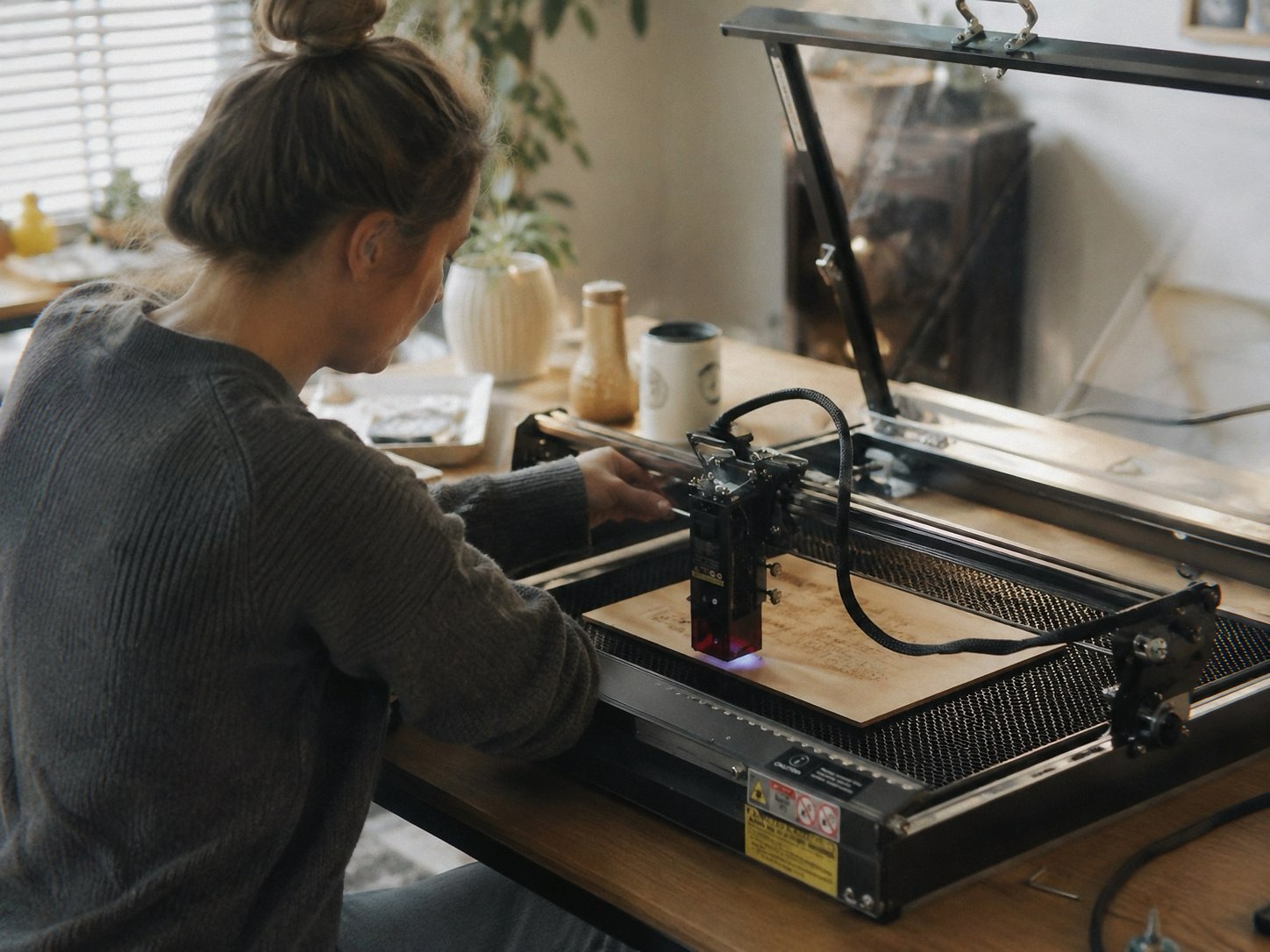
After a few weeks of daily use, I’ve engraved and cut a wide range of materials: birch plywood, MDF, acrylic (black and clear), anodized aluminum, glass, slate coasters, and even leather. The 10W laser handles most materials without breaking a sweat. The engraving on glass comes out frosted and delicate, though you need to apply a thin layer of dish soap or a marking compound first—otherwise the laser just bounces off.
The software workflow is where you’ll spend most of your time. LightBurn is powerful but has a steep learning curve. The built-in Creality Design Space software is simpler and more beginner-friendly, but it lacks some of the advanced controls. I ended up using LightBurn for everything because I hate being limited. The machine is compatible with Windows and macOS, and you can also run it offline via TF card. I haven’t used the offline mode much, but it’s nice to know it’s there.
One surprising use case: marking tools. I engraved my initials on every screwdriver and wrench in my workshop. It’s ridiculous. I don’t know why I did it. But now all my tools look like they belong to a professional, and I feel a little bit proud every time I pick up a socket wrench.
The downsides, because nothing’s perfect
Let’s talk about the machine’s firmware. It’s okay. Not great, just okay. I had a few instances where the laser homing sequence failed and I had to restart the machine. The emergency stop button works, but the tilt detection feature—the one that’s supposed to stop the laser if the machine gets bumped—triggered once when I dropped a pencil near the desk. No actual tilt, just vibration. That’s more sensitive than I’d like. I ended up disabling it.
Customer support is basically non-existent. I haven’t had a catastrophic failure, but reading other reviews, it seems like if you do run into trouble, you’re on your own. The company uses a ticket system that takes days to respond, and the answers are often generic. If this is your first laser, buy it with the expectation that you’ll have to figure things out yourself. YouTube and Reddit are your real support team.
Also, the machine is not silent. The XY stepper motors make a high-pitched whine during movement, and the air assist pump is a constant hum. It’s not unbearable, but if you’re planning to use it in a quiet room, you’ll hear it. I wear Bluetooth noise-canceling headphones and listen to podcasts. It’s a nice way to spend an evening, actually.
And the included manual? It’s not great. It’s written in that broken English that’s just understandable enough to be frustrating. Diagrams are tiny, steps are out of order in some sections, and the rotary roller instructions are just confusing. I had to watch three separate YouTube videos to figure out the roller assembly.
Creality Falcon 10W Laser Engraver with Air Assist
A few things you should know before buying
If you’re coming from a cheaper diode laser, this will feel like a significant upgrade. The 10W power is meaningful—you can actually cut through thick materials without three passes and a prayer. The air assist and rotary roller make it versatile in ways that cheaper kits aren’t. But if you’re expecting plug-and-play, you’ll be disappointed. This machine requires patience, especially during initial setup.
The build quality is solid for the price. Everything is metal where it matters, the belts are tensioned well, and the laser module feels robust. The Z-axis is manual, not motorized, which means you’ll need to adjust the focus by hand. That’s a little annoying when you’re switching between materials, but you get used to it. There’s also a slight wobble in the Y-axis if you’re running at high speeds—not enough to affect cut quality, but noticeable if you’re obsessive about tolerances.
One weird thing: the limit switches are optical, which is great for precision, but they’re sensitive to dust. I had a false home trigger once because a piece of wood dust settled on the switch. Wiped it with a microfiber cloth and it was fine. Now I keep a can of compressed air nearby.
The laser itself is Class 4, meaning it can cause serious eye damage if you look directly at it. The machine comes with an anti-UV acrylic shield that covers the module, and the protective glasses in the box are functional, if flimsy. I still wear them when it’s running, even though the shield is supposed to protect me. I’m paranoid like that. My dog, oblivious as ever, has no idea how dangerous this thing could be. He sleeps right under the workbench.
Would I buy it again?
Here’s the truth: I’ve spent more on tools that sit in a drawer and gather dust. The Creality Falcon 10W isn’t perfect—the firmware quirks, the USB cable nonsense, the customer support horror stories—but it’s the first laser engraver I’ve owned that actually made me want to use it more. I’ve already made a dozen cutting boards with custom engravings, a set of engraved coasters for a friend’s wedding, and personalized gifts that people actually complimented.
My windows are clean now. I had to move the machine near the window for ventilation, and in the process, I finally wiped down the glass. The screen is open, the summer air is coming in, and I’m losing the light fast. The air assist pump is humming, and I’m about to start on a batch of slate coasters for a coworker who’s retiring next week.
I don’t say this lightly: for under $400 with the rotary roller and air assist, this is a solid investment if you’re serious about laser engraving. If you’re just curious, maybe start with something cheaper and see if you actually enjoy the workflow. But if you want a machine that can handle varied materials, cuts cleanly, and comes with enough features to keep you busy for a long time—this is it. Just don’t expect support to hold your hand. YouTube is your friend. That review about the USB cable is your friend. And for the love of all that is holy, read the manual before you start—even if it’s a bit of a mess.
I’m gonna go engrave my name on a piece of acrylic now. Not because I need to, but because I can.