I have a confession. I returned the xTool F1 Ultra to the office and brought the xTool M2 home because my girlfriend threatened to “reconsider living arrangements” if I kept the 43-pound metal beast on the kitchen table. She’s not wrong. The F1 Ultra is amazing, but it’s not a “sit on the dining table while you eat cereal” kind of machine. It’s a workshop machine. The M2, on the other hand, is 35.6 pounds of enclosed blue-and-white plastic that looks like it could be a really fancy air purifier. My girlfriend walked past it twice before asking, “Is that new?” I told her it was a printer. I’m not proud of the lie, but I’m also not sleeping on the couch.
The M2 arrived two days ago. I’ve been running it nonstop since, burning through wood, leather, felt, fabric, paper, and one very unfortunate piece of cardboard that I accidentally set to the wrong power level. (It didn’t catch fire. It just smelled really, really bad. The cat left the room. I don’t blame her.)
This is xTool’s entry-level machine. $569. 10W diode laser. Dual cameras. Class 1 safety enclosure. No prior experience required, allegedly. I’ve been using lasers for a few years, so I’m not exactly the target audience, but I wanted to see if this thing could actually make crafting feel effortless. Spoiler: it kind of does. Also, I burned a hole in a piece of felt because I got cocky. But we’ll get to that.
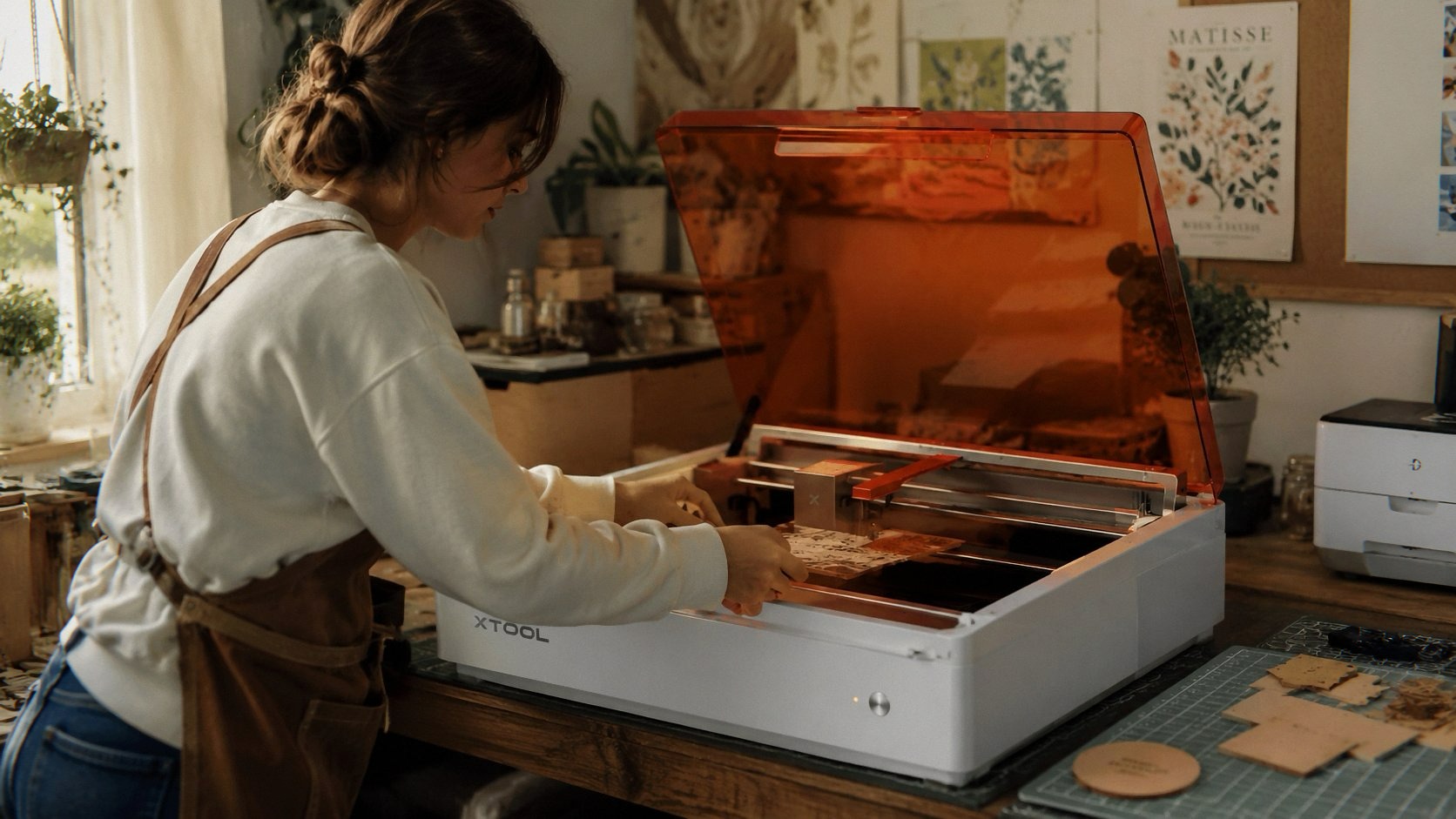
The Setup: QR Codes, No Paper, and a Panic Attack That Faded
I opened the box at 9 PM on a Tuesday. I’m a night owl. Bad decisions happen after 10 PM. The packaging is typical xTool—foam inserts, everything snug, no rattling. The M2 is smaller than I expected from the photos. It’s about the size of a large microwave, 27.5 x 24.75 x 10.5 inches. You could put it on a desk, a shelf, a wide bookshelf. It’s not exactly portable—35.6 pounds is still heavy—but you can move it without needing a chiropractor on speed dial.
No printed manual. Just a QR code on a card. My first thought: “Great, I have to use my phone to figure out how to use this thing.” I scanned it. It took me to xTool’s website with video tutorials. And honestly? I preferred it. I’ve spent too many hours flipping through dense manuals with translations that make no sense. The videos were clear, short, and actually showed someone doing the thing. I watched three of them, plugged in the machine, downloaded xTool Studio, and was engraving within 20 minutes.
The software logged me in with a quick email registration. No paywalls yet—I’ll get to that in a minute. The machine connected via USB-C (included) and Wi-Fi. I went with USB because I’m traumatized from the F1 Ultra’s Wi-Fi dropping mid-job, but I tested Wi-Fi and it held steady. The setup is genuinely painless. My mom could do this. My mom once asked me how to turn on a Bluetooth speaker. She would survive this.
Dual Cameras: The “Place & Go” Thing Isn’t Hype
The M2 has two cameras inside. One overhead, one angled. When you open the software, it shows you a live preview of your workspace—the actual bed, the material you’ve placed, everything. I put a piece of 3mm basswood down, selected a design in the software, and the camera showed me exactly where the laser would hit. I nudged the design around on the screen, and I could see the projected image shift in real time. It’s not as crisp as the F1 Ultra’s preview—the M2’s camera is good, not great—but it’s completely usable.
The ACS (Automatic Calibration System) is what makes it special. The camera and motion control work together. You put your material in, close the lid, hit “Go,” and the laser compensates for any slight misalignment. I purposefully placed a piece of leather at a slight angle—maybe 10 degrees off—and the laser adjusted the burn path to match the shape. It didn’t matter that I couldn’t place things perfectly. The machine fixed my laziness.
This is huge for beginners. I wasted so much material on my first laser because I couldn’t align anything. I’d tape down stencils. I’d measure with rulers. I’d do test burns on scrap. The M2 removes that entire step. You just drop the thing in, the cameras see it, and the laser goes to work.
I also used the “Place & Go” for a batch of felt patches—maybe 20 pieces, all slightly different sizes and placed haphazardly. The machine identified each piece individually, matched the design to the shape, and ran the job. I didn’t reposition anything. I didn’t sort them by size. I just put them in and started the job. It took maybe 90 seconds per patch, which is fast for felt. And every single one came out clean. No shifting. No misprints. No wasted material.
Print and Cut: The Feature I Didn’t Know I Needed See Today’s Deal on Amazon
This is the M2’s killer feature, and it took me a day to appreciate it. The M2 can sync with a CMYK inkjet module (sold separately, $169) to print and cut in one workflow. I didn’t buy the module because I wanted to test the base laser first, but I’ve seen the process in videos. You print a design on cardstock, the laser reads the registration marks through the camera, then cuts perfectly around the printed graphic. No moving the material between machines. No manual alignment with scissors or a separate cutter.
I’ve been doing stickers for a friend’s Etsy shop manually, and it’s a nightmare. Print on one machine, cut on a Cricut, waste 20% of the sheets because the alignment drifts. The M2 is designed to solve that exact problem. If I’d bought the module, my friend could have saved hours.
But even without the module, the “print and cut” workflow works for projects where you engrave then cut. I made a batch of wooden ornaments—engraved the design with the laser, then cut the outline. The camera ensures the cut path follows the engraving perfectly. No offset. No drift. Just clean edges.
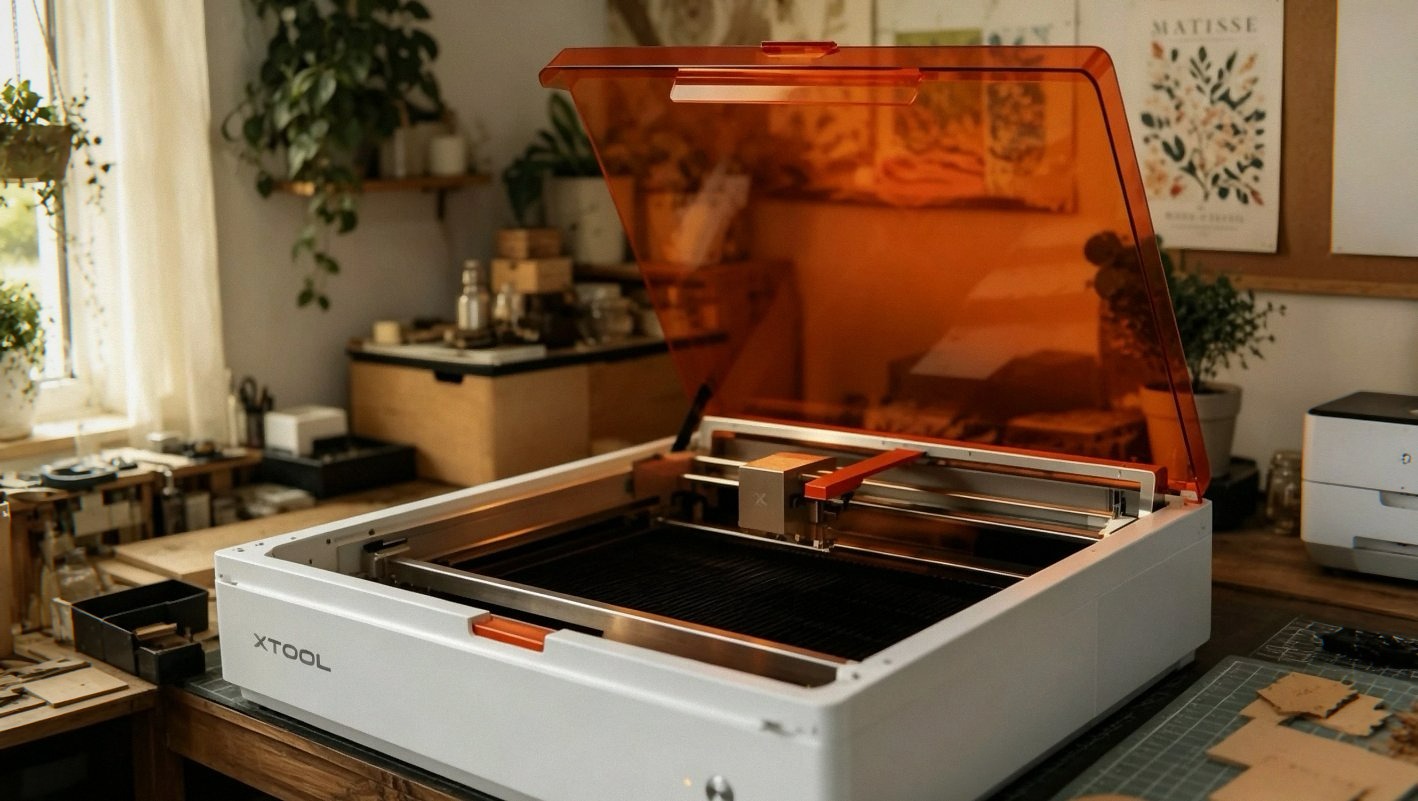
The 10W Laser: It’s Not the Most Powerful, But It’s Enough
10W diode laser. That’s not a lot. My F1 Ultra has 20W fiber and 20W diode. The M2 is half the power. But for what this machine is designed for—home crafts, small batch items, DIY projects—10W is plenty.
I cut through 3mm basswood in one pass at full power. Clean edge. Slight charring on the back, but that’s normal. I cut 12mm black acrylic—it took two passes, but it worked. Felt is effortless. The laser seals the edges so fabric doesn’t fray. I made a set of felt bookmarks for my sister’s book club, and they looked professional. The edges were melted just enough to prevent unraveling, but not so much that they looked burned. Leather engraving is crisp. I tested a piece of veg-tanned leather with a small floral pattern. The contrast was excellent—dark burn against the pale leather. Paper and cardstock are easy. The laser doesn’t punch through if you dial the settings down. The software has presets for each material, and they’re accurate enough to use without tweaking.
My biggest surprise was glass. The F1 Ultra struggles with glass—it’s faint and uneven. The M2’s diode laser on glass was… better? I etched a small design on a drinking glass using the rotary attachment (sold separately, RA3 Lite, $125). The result was a frosted mark that was consistent and readable. Not as deep as I’d want for a commercial product, but fine for a gift. The M2 might actually be better than the F1 Ultra for glass, which is weird and I’ll need to test that more.
Safety: Class 1 Means I Don’t Have to Yell at People
The M2 is fully enclosed. Class 1 safety. That means you can’t accidentally stare into the beam. The lid has an interlock—if you open it during a job, the laser stops immediately. No protective goggles required (though I still wear them out of habit from my old open-frame laser, which would blind you in the time it takes to blink).
I’m clumsy. I knocked a cup of tea near the M2 while it was running, reached over to grab it, and my hand brushed the lid. The machine paused instantly. I didn’t panic because nothing happened. The laser just stopped. I closed the lid, hit resume, and it continued from where it left off. No alignment issues. No lost progress. That’s the kind of safety you want when you’re distracted, or when your kid walks into the room, or when the cat decides to investigate. (The cat still hasn’t jumped on this one. It’s too small. She’s a size queen.)
The Downsides: Height, Honeycomb, and That One Weird Smell
Okay, here’s the stuff that bugged me.
Clearance is low. About 1 inch. That’s not a lot. If you use a honeycomb bed—which you’ll want to, to prevent scorching the bottom plate—the material sits higher, and you’re left with a few millimeters of clearance. You can run without a honeycomb, but then the laser burns the bottom plate. I’ve done it a few times. The plate is replaceable, but it looks messy. xTool says a honeycomb is in the works, but it’s not included. For a machine that’s supposed to be beginner-friendly, they should ship it with one. Or at least make it cheaper than $30 from third-party sellers.
The height limit also limits the materials you can use. Thick wood (over 15mm) won’t fit. Thick acrylic won’t fit. You’re restricted to thin materials. The M2 is for crafts, not woodworking.
The software logged me out twice. xTool Studio is great, but it requires an internet connection. I lost Wi-Fi for about five minutes, and the software kicked me out. I couldn’t start a job until I reconnected. That’s annoying. It’s not a subscription issue—just a design oversight.
Printing module is sold separately. I know it’s optional, but the marketing heavily promotes the “full color printing” capability, and you can’t do that without spending another $169. So the “all-in-one” claim comes with an asterisk. If you’re buying this, budget for the module.
There’s a faint smell when the laser runs. It’s not the usual burning smell—it’s more electrical, almost like ozone. It fades after a few minutes, but it’s there. I don’t know if it’s the coating on the lens or something inside the enclosure, but I noticed it. It might be a manufacturing residue. I’ll check if it disappears after more use.
Who Is This For?
The M2 is for people who want to make things without feeling like they need a PhD in laser physics. It’s for the Etsy seller who’s tired of aligning stickers by hand. It’s for the crafter who wants to engrave gifts for friends and not start fires. It’s for anyone who’s looked at the F1 Ultra and thought, “That’s incredible, but I can’t afford it and I don’t want my kitchen to smell like burnt metal.”
The M2 is cheaper, safer, easier to set up, and more forgiving. The dual cameras and “Place & Go” feature eliminate the learning curve. The software is intuitive. The safety enclosure means you don’t have to build a workshop in your garage.
That said, if you’re engraving metal, doing industrial batch jobs, or need speed, this isn’t your machine. That’s the xTool F1 Ultra territory, and it’s a different price class. If you’re deciding between this and the Creality Falcon 10W, the M2 has a better camera system and safer enclosure, but the Falcon is cheaper and more open for customization. If you need portability, the LaserPecker LP2 is lighter and more travel-friendly, but you lose the safety and work area.
The M2 has a working area of 16.7 x 12.5 inches, which is A3 size. That’s bigger than most entry-level machines. You can fit a full sheet of cardstock, a clipboard, a small wooden cutting board. The bleed area means you can engrave slightly larger materials if you don’t mind the edges overhanging.
The Verdict See Today’s Deal on Amazon
If you grab one through the links here, I might get a small cut—costs you nothing extra and keeps the lights on. And I’d say this: the xTool M2 is the first laser engraver I’ve used that felt like it was designed for people, not for engineers. It’s not perfect—the height limit, the missing honeycomb, the separate modules—but the core experience is smooth.
I made a set of wooden keychains for my coworkers yesterday. Took maybe five minutes per batch. Clean cuts, crisp engraving, no misalignment. They asked if I bought them. I told them I made them. They didn’t believe me, which is the best compliment a laser can get.
Anyway, I need to figure out how to get the smell of burning felt out of my office. The cat is still avoiding the room. The girlfriend is happy the F1 Ultra is gone. The M2 stays. For now.